whatdidido
Free and open source · Linux first
A reviewable record of your work, kept on your machine.
whatdidido takes a screenshot every few seconds, reads the text on screen locally, and turns your day into a timeline, a timesheet and notes that cite their sources. It is for people who need an accurate record of their work that they can check.
Inspired by tools such as ManicTime. Built around open source, Linux and Wayland, explicit privacy controls, and optional LLM-assisted summaries. Licensed AGPL-3.0-or-later.
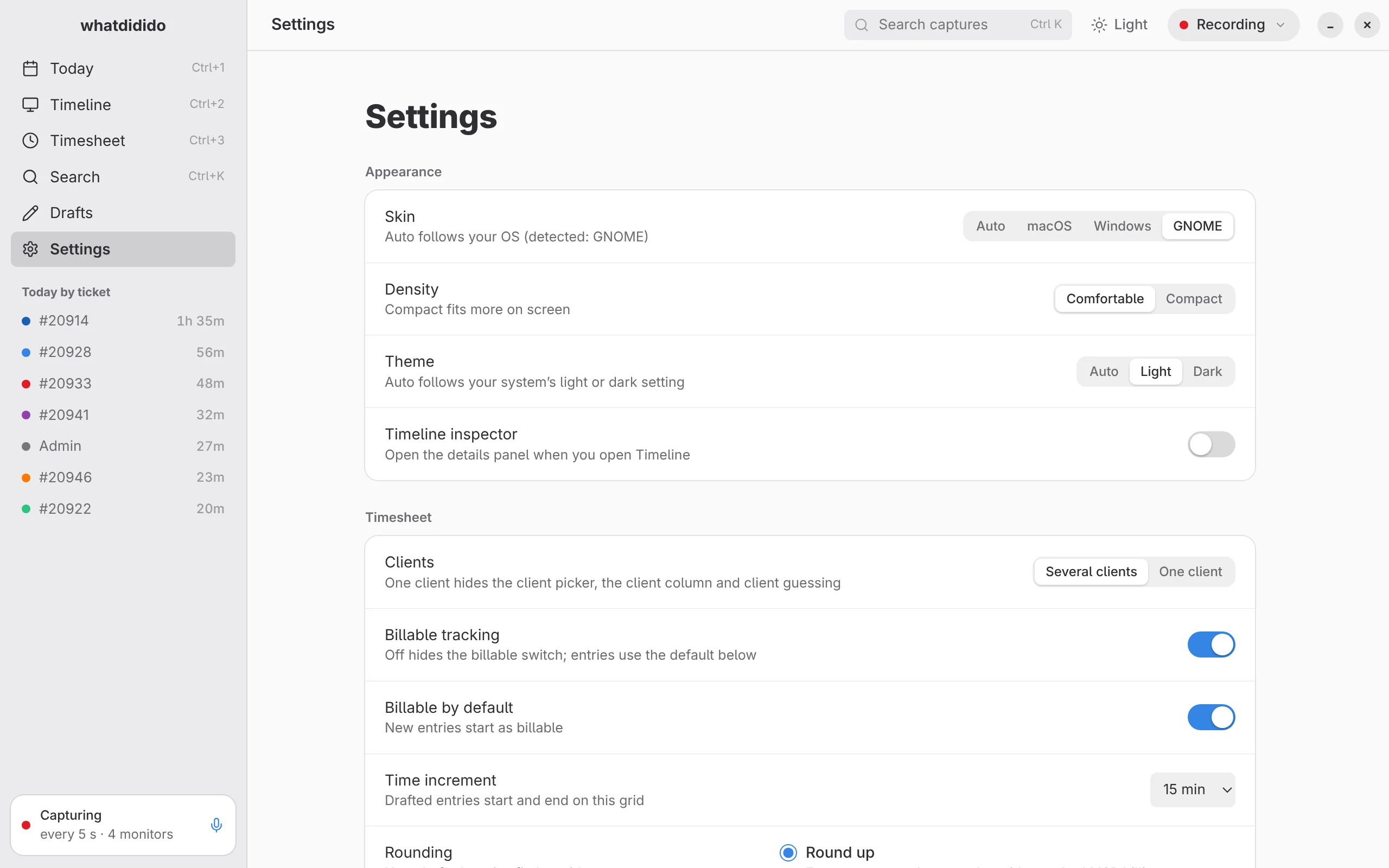
Pre-alpha. Changing fast, and tested only on Fedora Workstation 44 with GNOME 50.
You’re seeing the macOS skin. Capture currently runs on Linux with GNOME on Wayland; Windows and macOS are planned.
You’re seeing the Windows 11 skin. Capture currently runs on Linux with GNOME on Wayland; Windows and macOS are planned.
Today
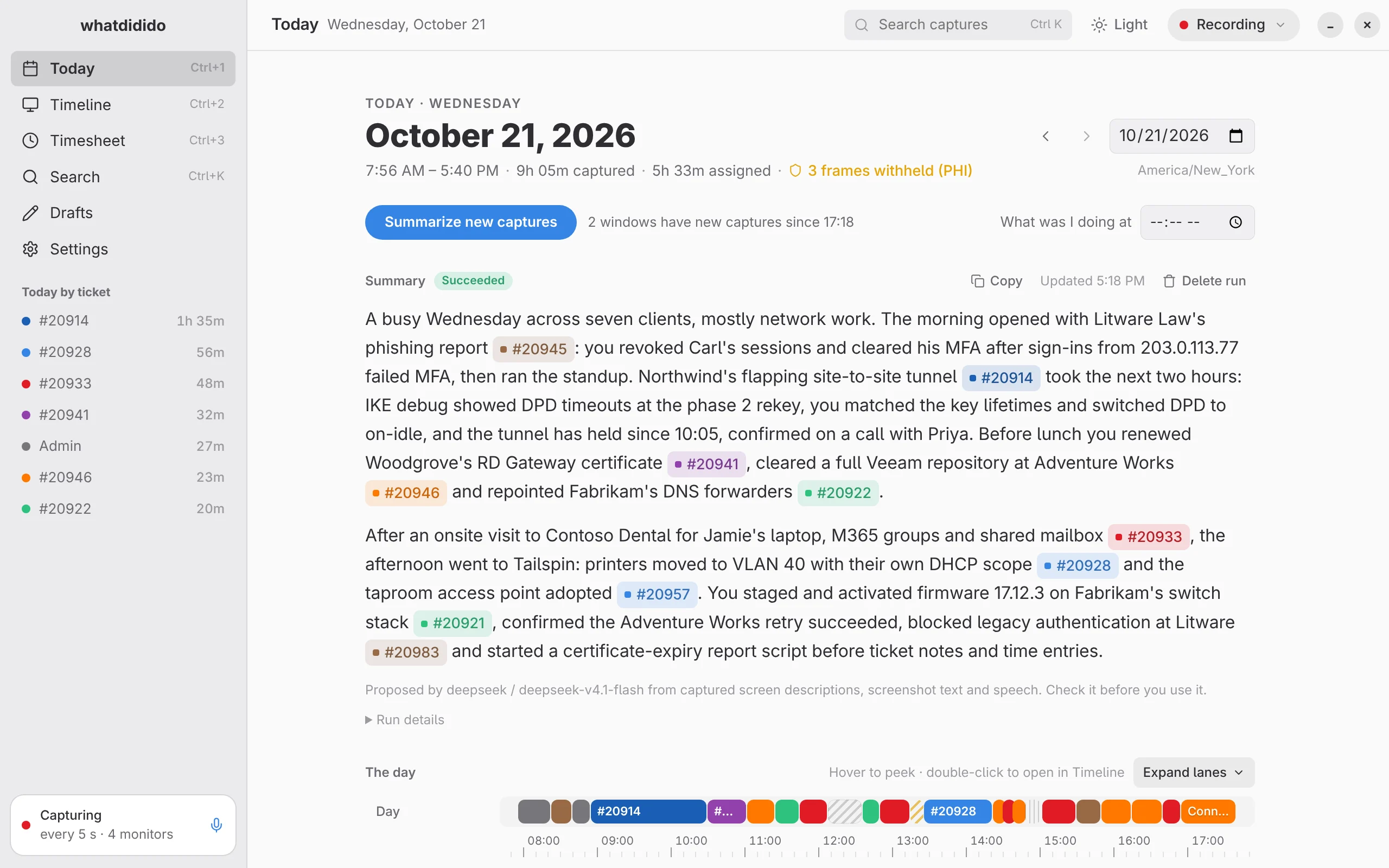
Your day, written up from what was on screen
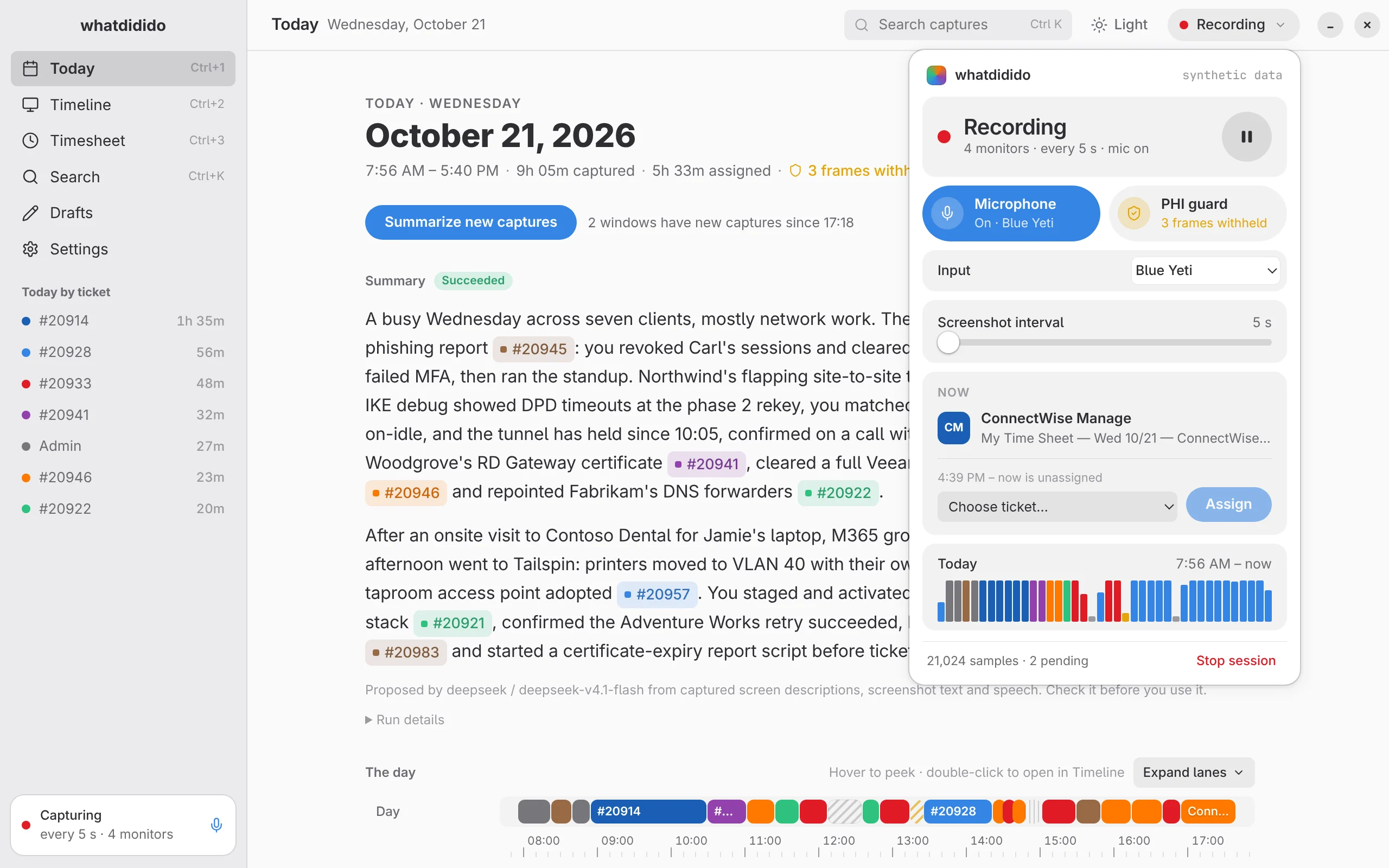
Today summarizes your captures in 15-minute windows: a short summary on top and a detailed log below. Ticket numbers it finds show up as chips.
- Everything is Markdown. Copy one log entry or the whole day, or download it as
notes.md. - Open any log entry in the Timeline to see what was on screen.
- Re-running only re-summarizes the windows that have new captures.
- Automatic summaries are opt-in.

Timeline
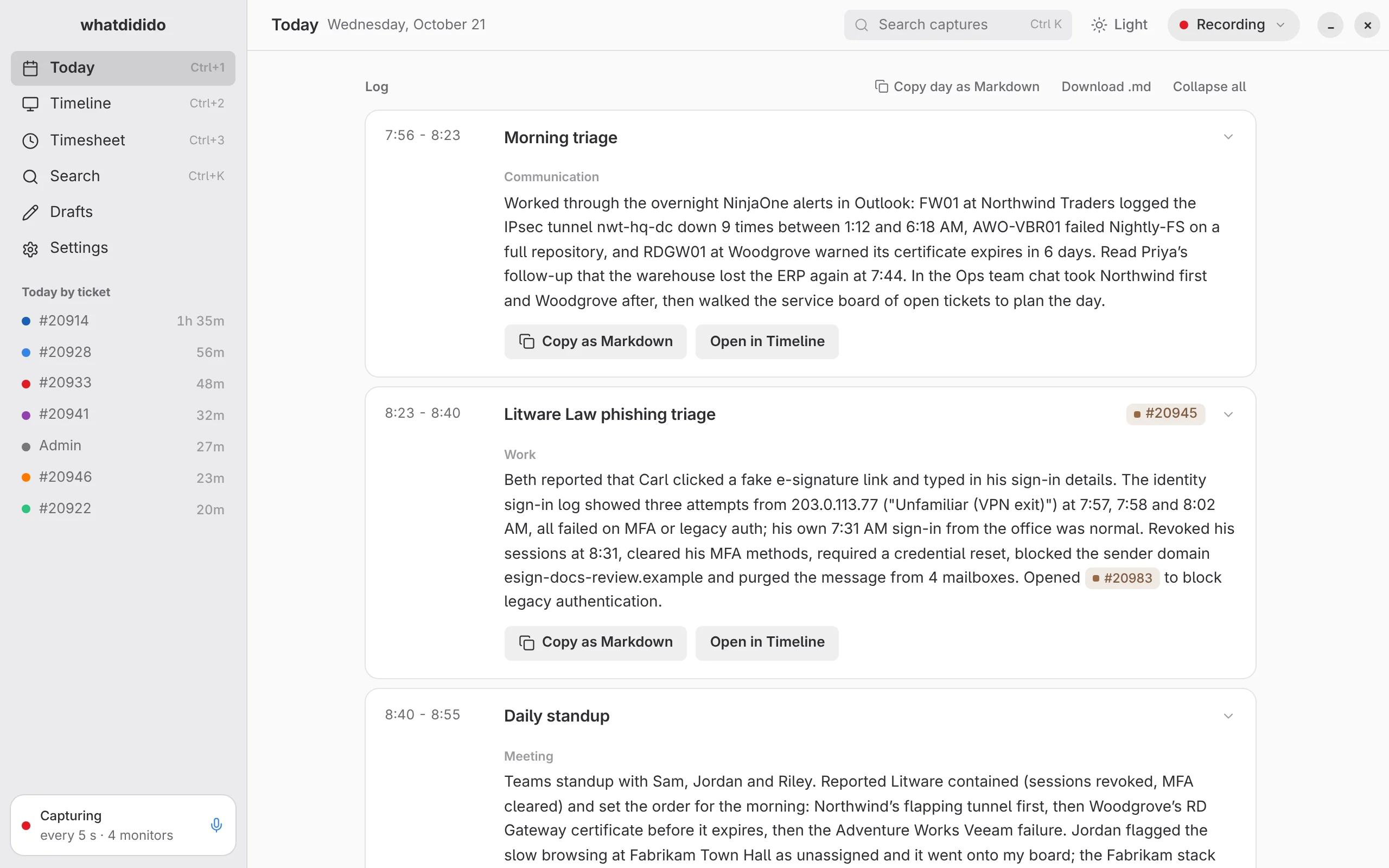
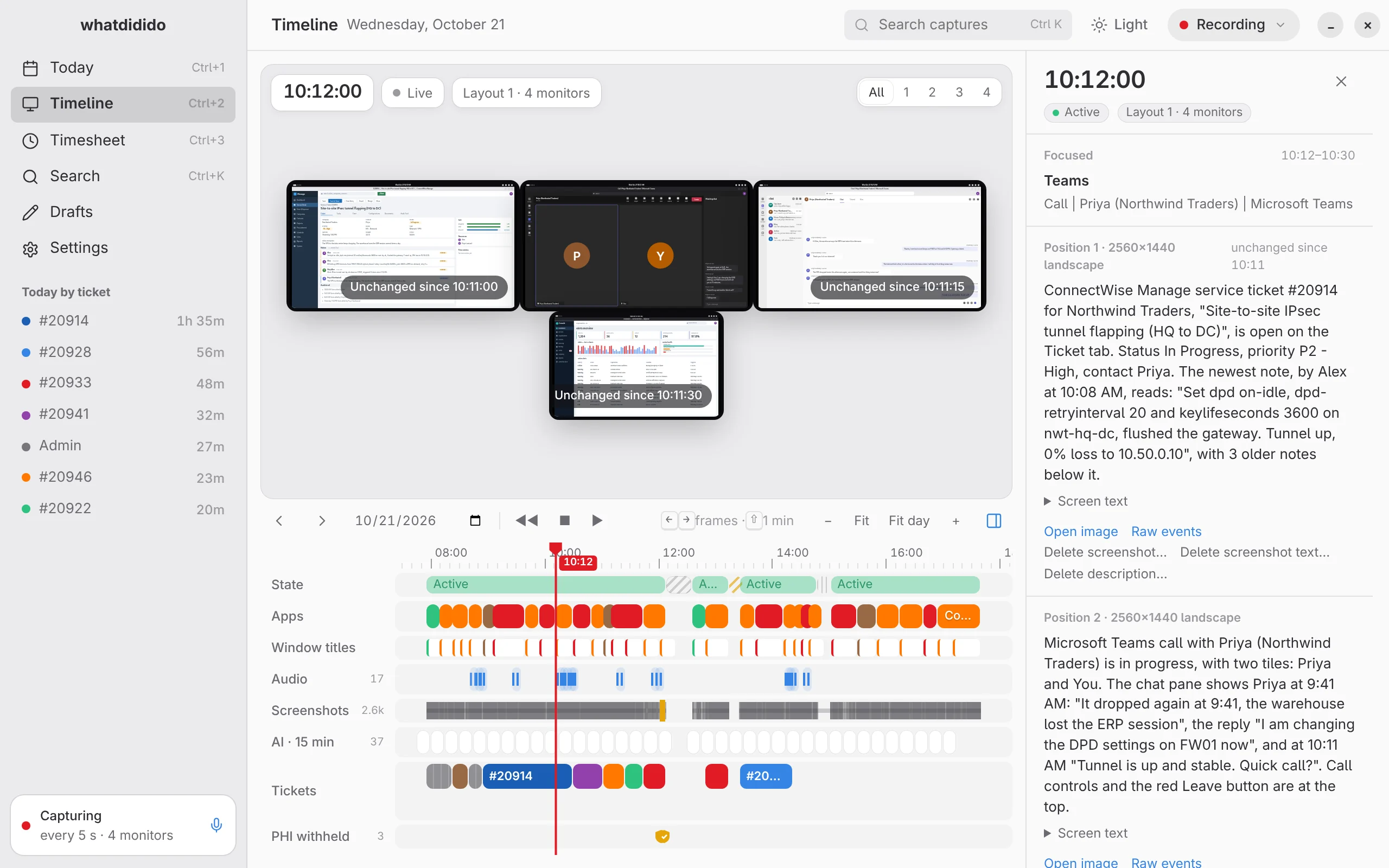
Scrub through the day like a video
The desktop view shows every monitor at its real position, using the layout that was active at that moment. Docked, that can be four screens including the laptop panel; undock at midday and it becomes the laptop alone, then switches back when you dock again.
Below it, lanes line up state, apps, window titles, audio, screenshots, AI descriptions and tickets. Play it back from the keyboard with J K L. Delete any single screenshot, text, transcript or recording; each deletion goes into an audit log.

Timesheet
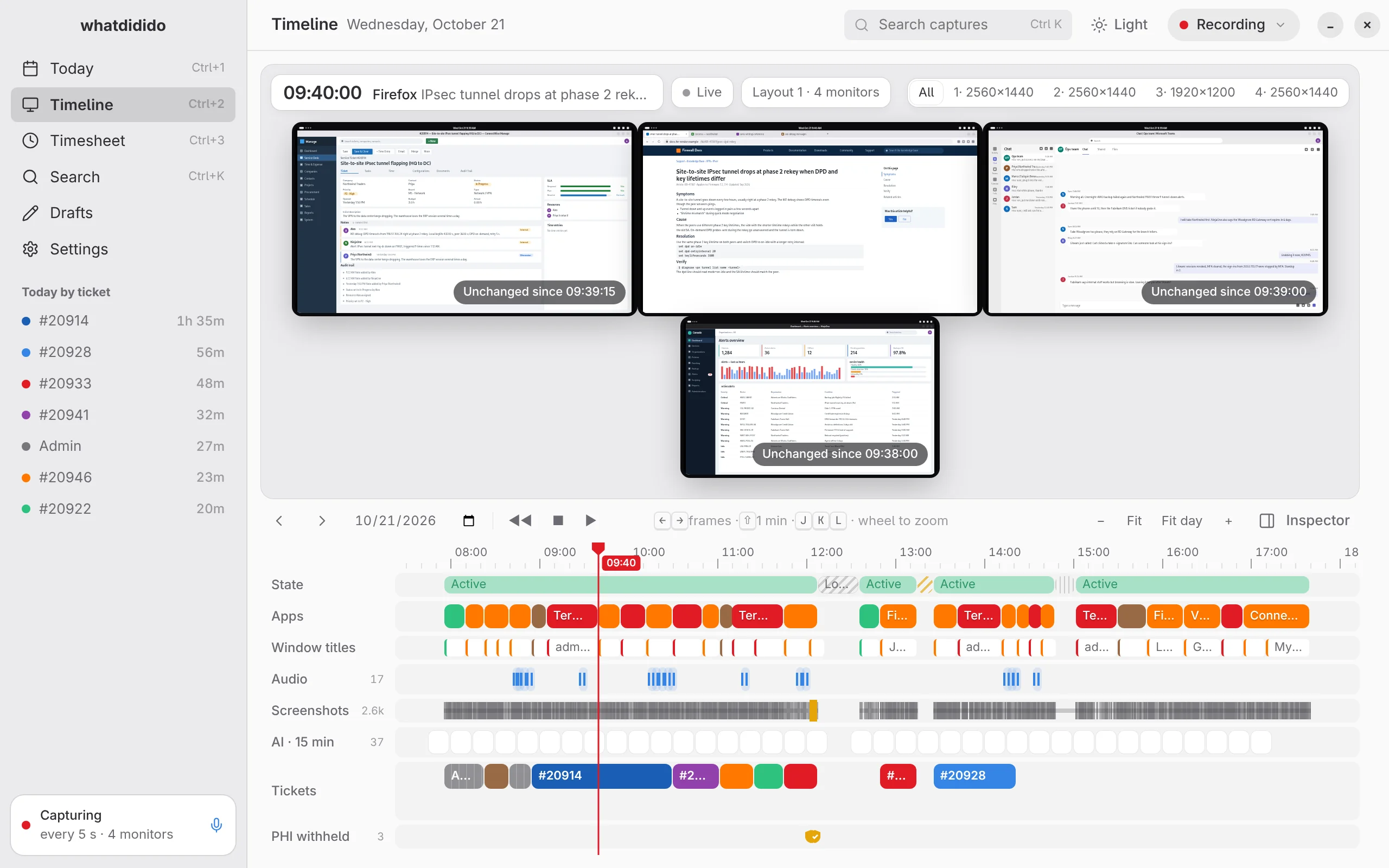
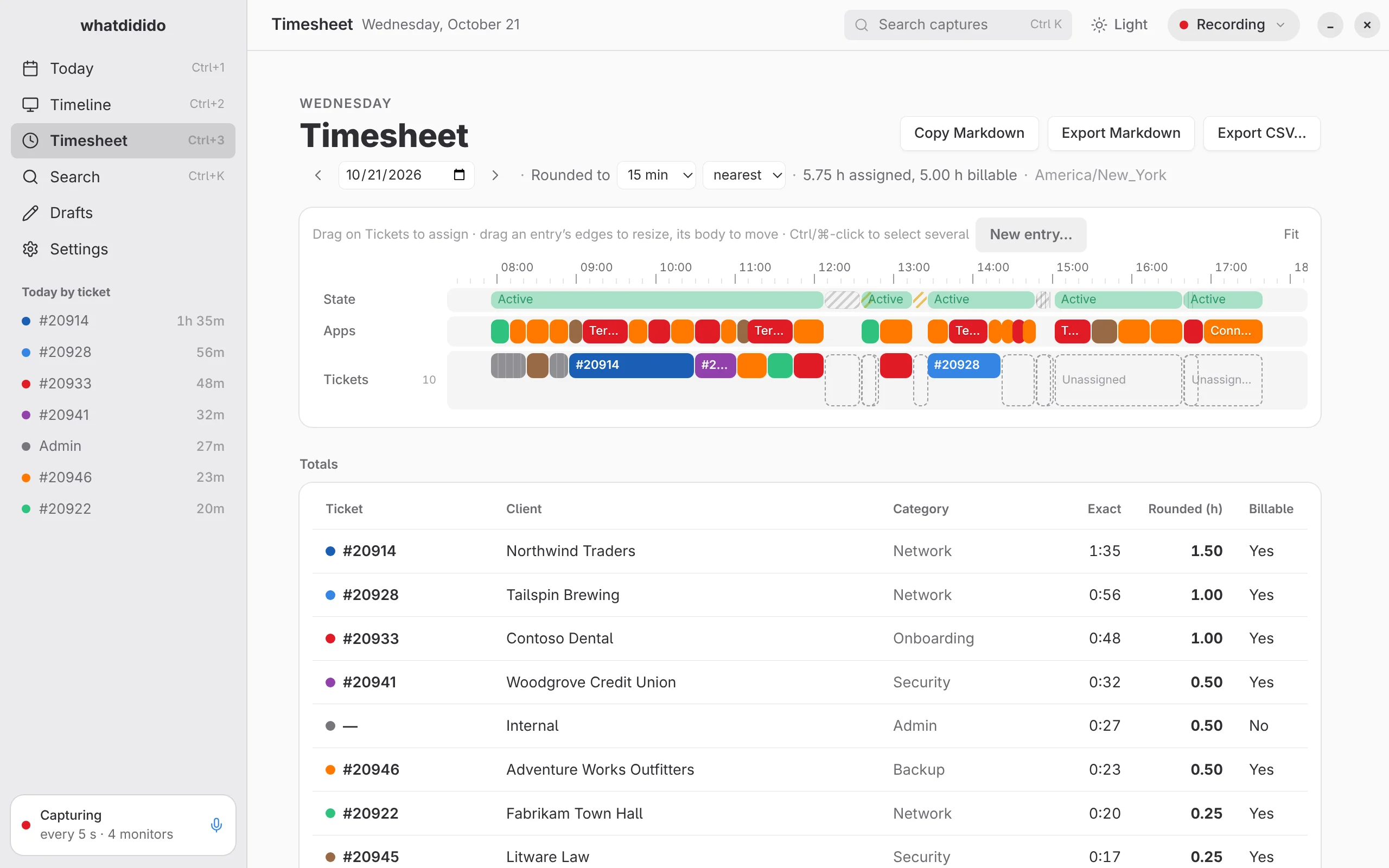
Drag across the day to assign time
Drag over the day’s lanes to assign time to a ticket. Entries round to your increment, such as 15 minutes, and totals add up per ticket and client with billable flags.
- Double-booked time is flagged.
- Export the day as Markdown or CSV.
- Optional drafted suggestions, each with a note, that you review before they count. See how drafting works.

Search & recall
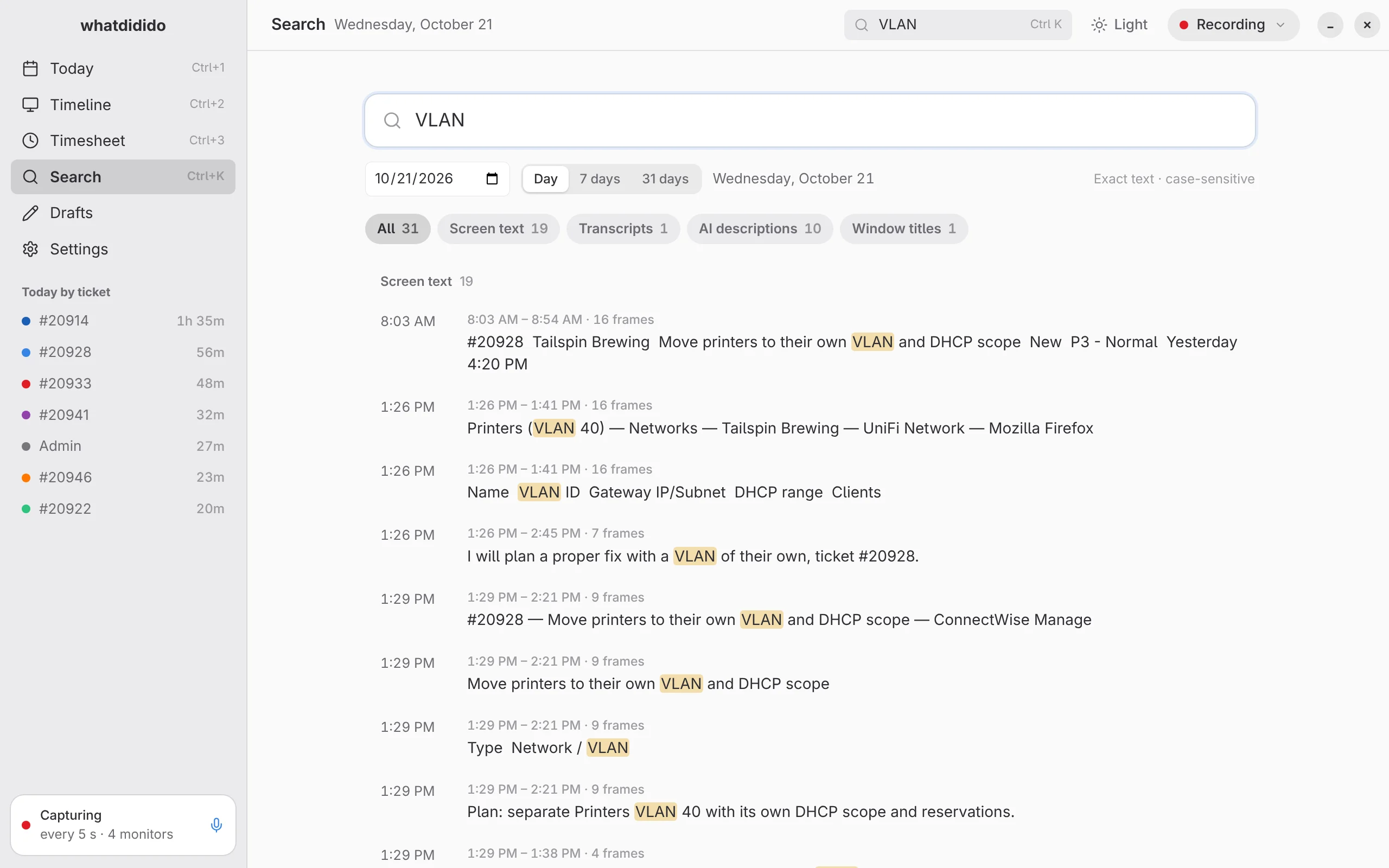
Find the moment you saw it
Search is exact and case-sensitive. It covers screen text, audio transcripts, AI screen descriptions and window titles, for one day or a range.
For your own tools there is a versioned HTTP API (/api/v1) with device tokens, and optional single-user OIDC sign-in.
Ask from your assistant
A read-only MCP server lets an AI assistant answer questions from your record, like “what was I doing at 2:15?” or “what did I do between 1 and 3?” It only talks to your local server. Ask, below, brings the same idea into the app.

Ask
Ask your record, and check the answer
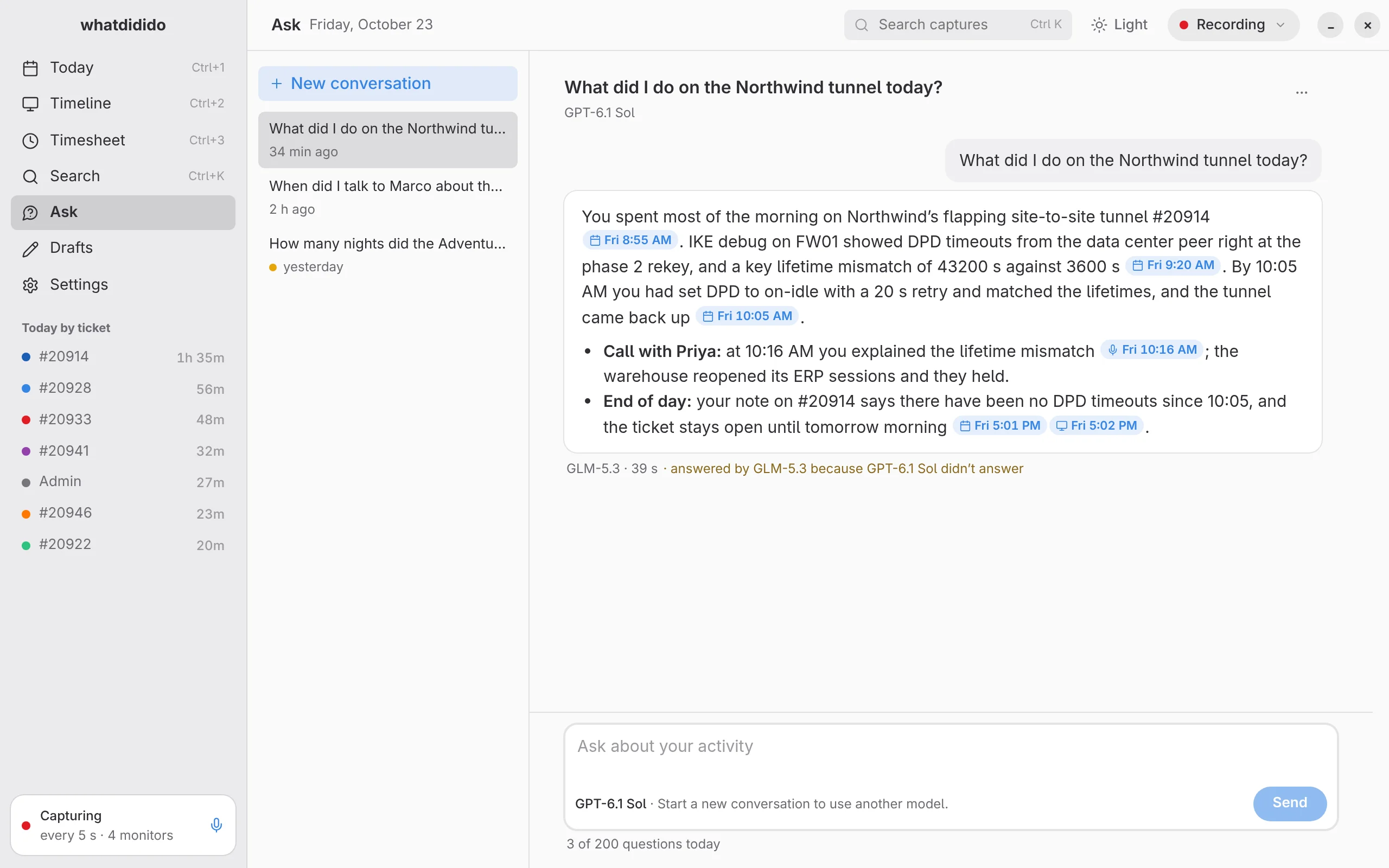
Ask a question about your own activity in plain language, like “When did I last look at the printer ticket?” A model answers from your summaries, screen descriptions and audio transcripts, and every claim links, as a chip, to the moment on the Timeline it came from.
- It works through read-only searches of your record, in a bounded loop, then answers. Progress words show what it is doing, and you can cancel.
- Conversations are kept, so you can come back and ask a follow-up.
- For the local owner only, for now.

What keeps it honest
The same idea as the MCP server in Search & recall, built into the app, with checked citations.
- Checked citations
- The server checks every citation. One the model invents is removed, not shown. Delete a source an answer cited, and the stored answer is replaced with “This answer cited something you deleted.”
- Opt-in, and plain about what is sent
- No Ask page and no index work unless the server is started with an Ask config. Under the question box, the app says what is sent and to whom: your question and the matching parts of your activity, to the model you picked, by name.
- PHI guard, always on
- Every piece of captured text is checked before it is sent to a model, and on Ask the guard can’t be turned off. Matching runs on guarded text, so a withheld identifier finds nothing. No captured text goes into logs.
- Your choice of model
- Configure named models (OpenAI-compatible chat completions or the Responses API) and pick one per conversation. A fallback model is used only if the chosen one fails, and the answer says so.
- Bounded cost
- Limits per question, a daily cap shown under the composer (“3 of 200 questions today”), and at most two questions running at once.
AI assist
Descriptions, summaries and timesheet drafts, from your own record
Besides Ask, three optional features put what you captured into words: a description of each screenshot, a summary of each part of the day, and drafted timesheet entries with their notes. Each is off until you configure it, and works with any OpenAI-compatible endpoint, whether a model server you run yourself, such as Ollama or a router, or a cloud provider. Nothing is posted to any other system: you copy or export what you accept.
Screen descriptions
A vision model looks at each new screenshot and writes a short description of what is on screen and what you appear to be doing: the app, the task, and the ticket or ID tied to the work. It catches what screen text alone can’t, such as which window is in front, a call in progress, a diagram or a remote-desktop session.
This is the only feature that sends screenshot pixels anywhere, so it is off by default and needs its own opt-in in the config. While it runs, the session shows the provider and model, and you can point it at a model on hardware you control.
- Descriptions are searchable, sit next to the screen text in the Timeline, and feed the summaries.
- Pick the style: brief, standard or detailed.
- An optional PHI guard withholds frames and text that look like protected health information before anything is sent.

Summaries
Each 15-minute window of the day gets a summary written from everything captured in it. The day then gets a short summary and a detailed Markdown log, as shown in Today above. Re-running only re-summarizes windows with new captures.
In the optional automatic mode, a run starts every 30 minutes while you work, plus one final run when capture goes quiet: a lock, a pause, a stop or a static screen.
Each window is written from
- Screen descriptions
- From the vision model, when it is on.
- Screen text
- Local OCR of every screenshot.
- Audio transcripts
- Local transcription, when audio capture is on.
- Window titles
- Optional.
Drafted timesheet entries and notes
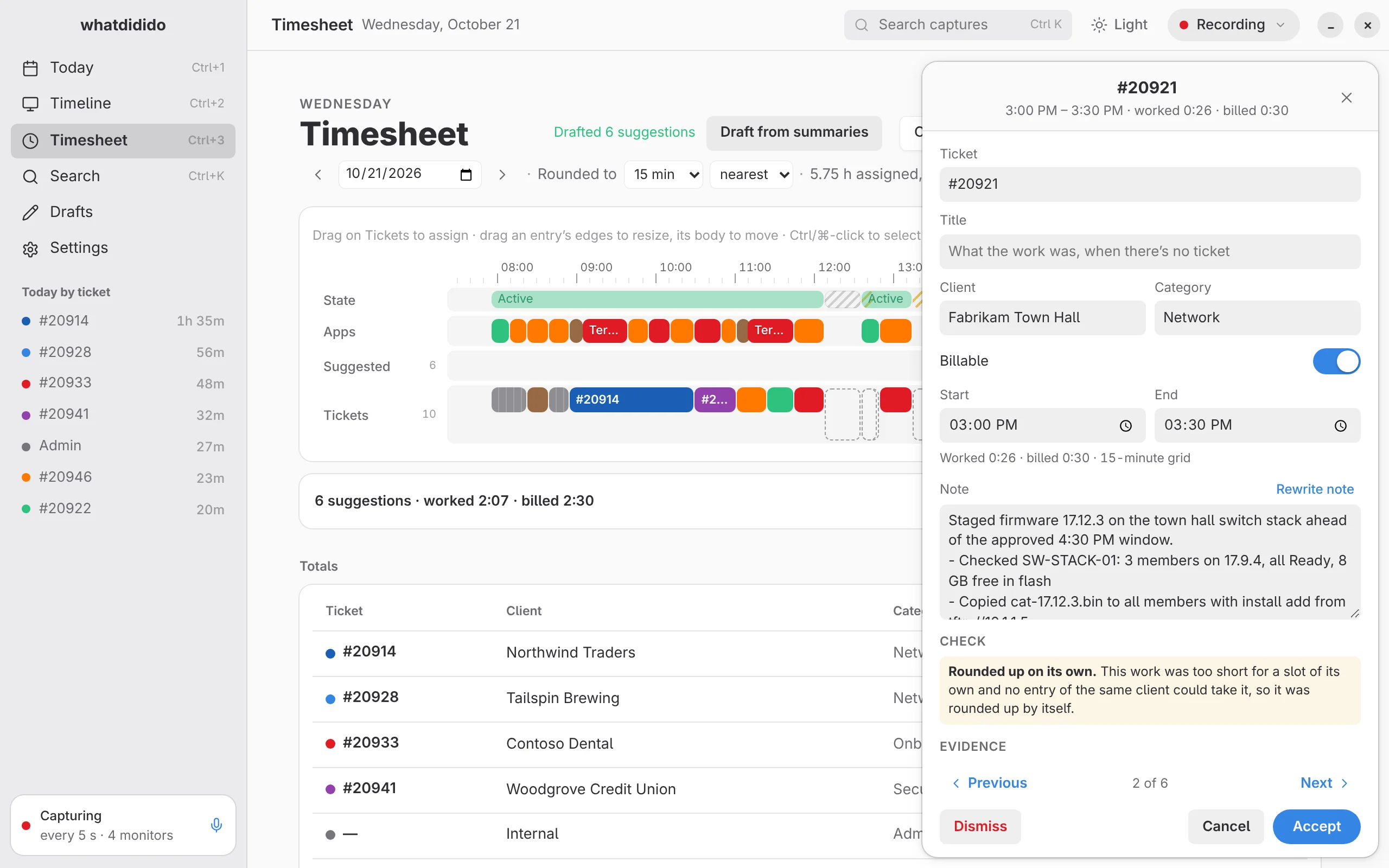
From the summaries, whatdidido drafts timesheet suggestions: a ticket or title, client and category, start and end, and a write-up note. With automatic summaries on, drafting follows each run, so suggestions are waiting by the end of the day. You can also press “Draft from summaries”.
The model judges what you worked on; plain code does the arithmetic, snapping times to your rounding grid so you see worked and billed time.
- Checks you can see: a new ticket or title, rounded up on its own, mostly idle, client guessed, no note.
- Edit, ask for a rewritten note, accept or dismiss. Re-drafting never touches what you already accepted or dismissed.
- The write-up style is a guide you can edit. whatdidido can propose an update learned from drafts you edited before accepting; you approve each version before it is used.

Failed runs keep only an error code, never model output. Need a ticket note for any time range, with every claim citing its evidence? That’s Drafts, below.
Drafts
Ticket notes that show their work
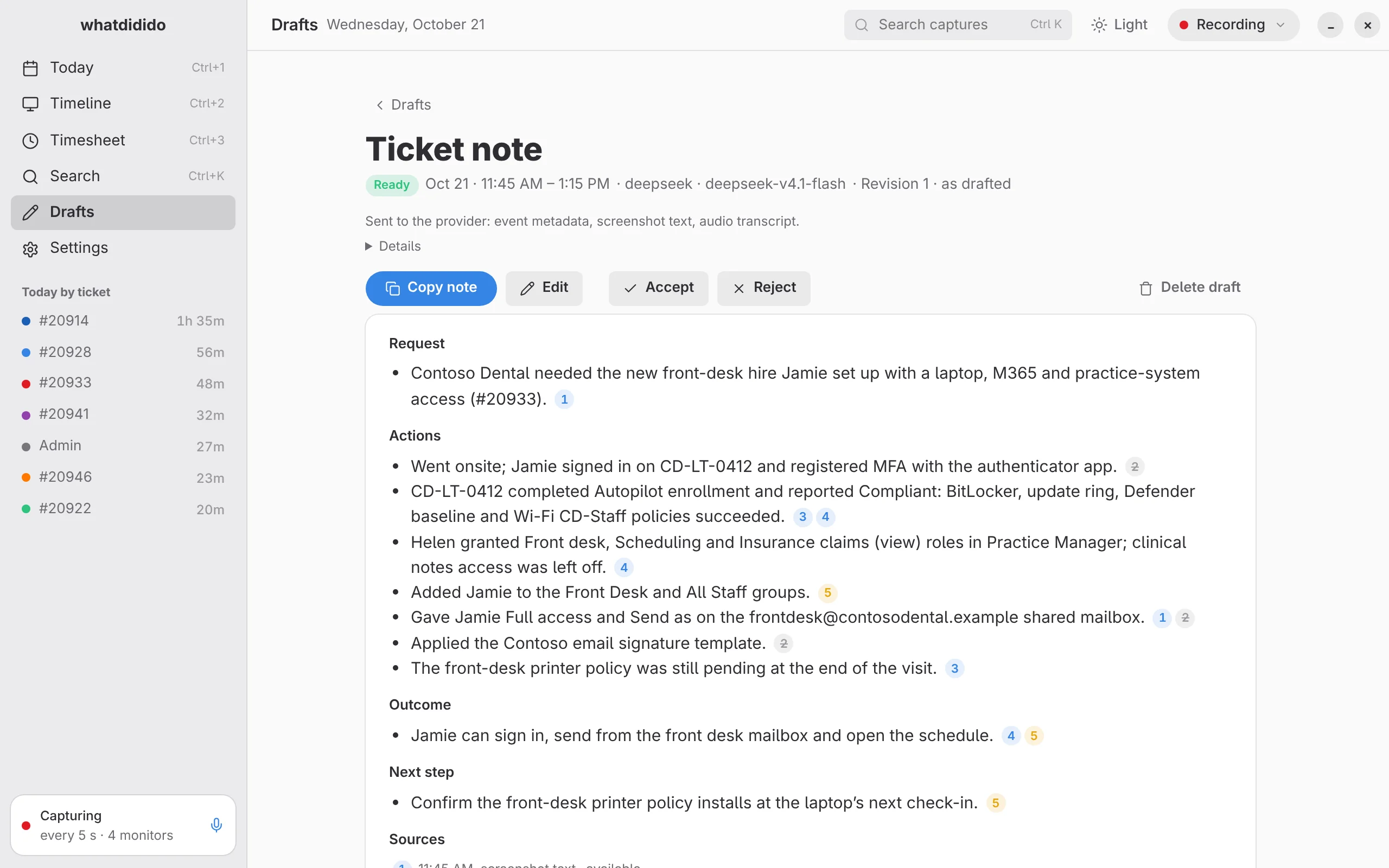
Pick a time range and whatdidido drafts a ticket note: the request, what you did, the outcome and the next step.
Every claim carries numbered citations to the screen text, transcripts or captured events it rests on, listed under Sources. Claims without valid citations are rejected.
The Sources list also flags a source that is no longer available, or whose text changed after the draft was written.
Nothing is posted anywhere. You copy what you want.
Capture
Capture you can see and stop
Capture uses the XDG ScreenCast portal and PipeWire. It starts only after you approve monitors in GNOME’s chooser, up to four in one approval.
- A screenshot about every 5 seconds by default. Change the interval while recording, from 5 seconds to an hour.
- A screen identical to the previous one is recorded as unchanged and not stored again.
- Screenshots are lossless WebP, pixel-exact, and kept until you delete them.
- Your monitor choice is remembered per monitor layout, so docking and undocking reconnect to the right screens.
- A screen lock or suspend pauses capture. It resumes after unlock without asking again.
GNOME top-bar extension
The whatdidido GNOME extension controls Start, Pause and Resume, Stop, the interval, and a live microphone toggle. It reminds you if you leave capture paused. Optionally it also reports active window titles and app names; idle, locked and paused time show up as lanes too.
Audio, if you want it
Record your microphone, the other side of a call, or both. Recording the other side asks you to confirm that everyone has agreed. whisper.cpp transcribes locally and nothing is uploaded. Transcripts are searchable and play back next to the timeline.

Privacy & control
What stays, what’s optional, what can leave
whatdidido records a lot, so the defaults are conservative and every switch is explicit. There is no telemetry.
Stays on your machine
Always, whatever you configure.
- Screenshots
- Stored locally as lossless WebP and kept until you delete them.
- Screen text
- Tesseract OCR runs locally. Pixels and extracted text stay on the machine.
- Audio
- whisper.cpp transcribes locally. Recordings and transcripts are not uploaded.
- The server
- Listens on loopback (127.0.0.1) only by default.
Opt-in
Off unless you turn it on at launch.
- Capture classes
- Each kind of capture is enabled explicitly.
- AI features
- Summaries, drafts, timesheet suggestions, screen descriptions and Ask are each enabled explicitly.
- The other side of a call
- Recording output audio requires confirming that everyone has agreed.
Can leave the machine
Only when you configure an AI provider.
- Provider
- Any OpenAI-compatible endpoint, local or remote, for example Ollama or a router you run.
- Derived text
- Summaries, drafts and timesheet suggestions send derived text only.
- Screenshot pixels
- Only screen descriptions (a vision model describing screenshots) send pixels. Off by default; opt-in per config.
- PHI guard
- Optional. Withholds frames and text that look like protected health information before anything leaves the machine.
- Failed runs
- Keep only an error code, never model output.
Retention and deletion
Each kind of data on its own terms.
Delete a screenshot and its text stays searchable, labeled as coming from a deleted source. Or delete the text and keep the image. Every deletion is recorded in an audit journal.
Get started
Status, roadmap and links
whatdidido is pre-alpha and changing fast. The database schema is not stable yet, so an update may require a new database.
The source repository is not public yet; setup instructions will be published with it. The GNOME top-bar extension is already public.
- Tested setup
- Fedora Workstation 44 with GNOME 50. Single user, server on localhost with SQLite.
- Capture
- GNOME on Wayland only, today. The interface already has macOS, Windows 11 and GNOME skins; capture does not run on macOS or Windows yet.
- License
- AGPL-3.0-or-later
- Source code
- Coming soon
- GNOME extension
- github.com/hpst3r/whatdidido-gnome
Platform roadmap
- GNOME on WaylandNow. The only platform capture runs on.
- KDENext.
- Windows and macOSPlanned, and far off.
Also planned, not done: Postgres support and multiple users.